
Printable PDF Coloring Pages: Your Complete Guide
Welcome to the ultimate resource for everything about printable PDF coloring pages and digital art designs! Whether you’re a parent seeking engaging activities for your children, an adult looking for stress-relief through creative expression, or an educator searching for classroom materials, this comprehensive
🎨 Not sure where to start? Here are our most loved products.
Below you’ll find answers to the most frequently asked questions about our printable coloring books, download issues, printing tips, and printed editions. Whether you’re new to digital downloads or looking for details about our printed coloring books available on Amazon or Lulu, we’ve got you covered.
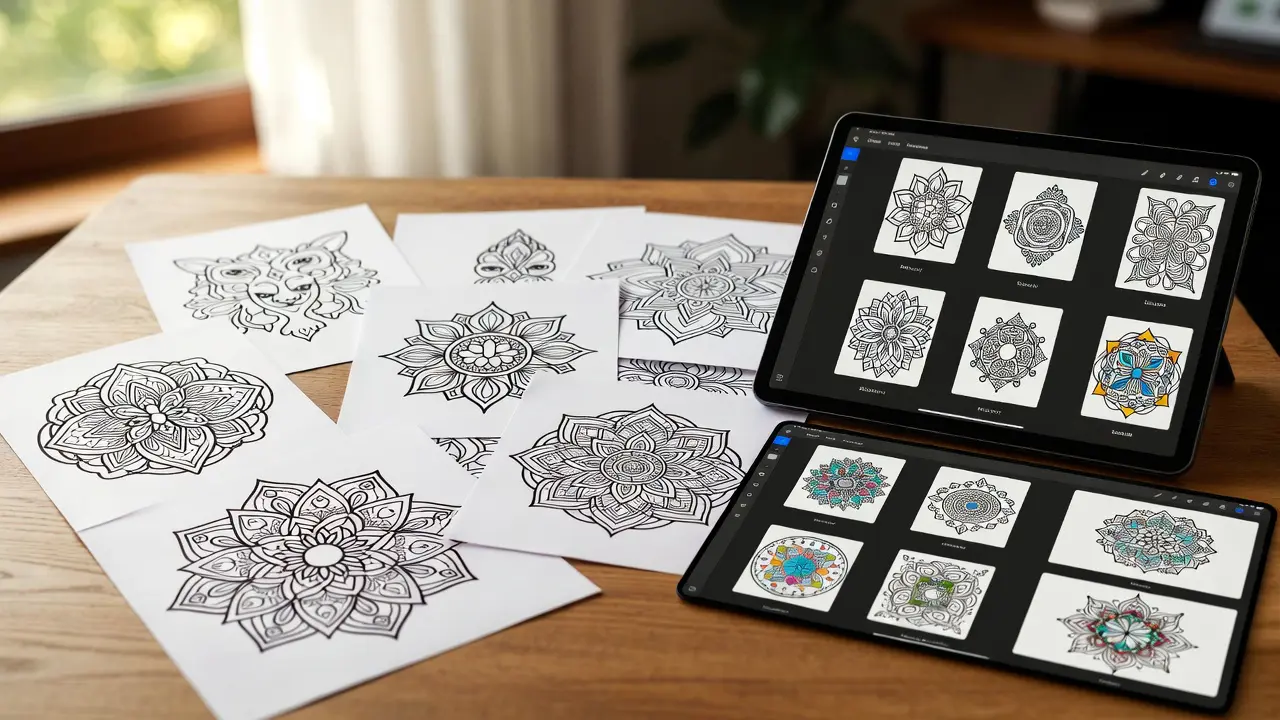
FAQs – Printable PDF Coloring Pages and Digital Art Designs
Printable PDF Coloring
Q1: What are printable PDF coloring pages?
A: Printable coloring pages are digital files designed for download and home printing for coloring activities. These printable art pages come in various formats, including PDF, PNG, and JPG, and can be printed on standard paper with your home or office printer. They feature outlined drawings, patterns, or designs that can be filled in with crayons, colored pencils, markers, or other coloring materials. Printable PDF coloring pages span countless themes from animals and nature to mandalas, holidays, educational content, and popular characters, making them accessible entertainment and creative outlets for all ages.
Q2: What file formats are best for printable coloring pages?
A: The most common and recommended formats for digital coloring files are PDF, PNG, and JPG. PDF files maintain consistent quality across devices and preserve the exact layout and sizing, making them ideal for printable PDF coloring activities. PNG files offer high-quality images with transparent backgrounds when needed and work well for both printing and digital coloring apps. JPG files are widely compatible and have smaller file sizes, though they may have slightly lower quality than PNG. For the best printing results with printable art pages, use high-resolution files (at least 300 DPI) to ensure crisp, clear lines that won’t appear pixelated when printed.
Q3: How do I print coloring pages at home?
A: Printing digital coloring files at home is straightforward. First, download the printable art page to your computer or device. Open the file using a PDF reader or image viewer, then select the print option from the File menu. Before printing your printable PDF coloring page, check your printer settings to ensure you’re using the correct paper size (usually 8.5 x 11 inches or A4), select the appropriate paper type, and choose the best print quality setting for clear, dark lines. For best results, use thicker paper (cardstock or heavyweight printer paper) to prevent bleed-through when using markers and to provide a better surface for coloring. Regular printer paper works well with colored pencils and crayons.
Q4: Are there printable coloring pages available online?
A: Yes, there are numerous premium digital coloring files available online, with EG Creativity Art being a notable source for high-quality downloadable content. We offer a diverse collection of premium and free printable art pages featuring themes such as animals, nature scenes, mandalas, seasonal designs, and educational content suitable for both children and adults. Our designs are crafted with attention to detail, featuring clean lines and well-balanced compositions optimized for home printing.
Q5: What is the difference between printable and printed coloring pages?
A: Printable coloring pages and printed coloring pages differ primarily in their format and delivery method. Printable PDF coloring pages are digital coloring files (PDF or PNG) that you download to your device and print yourself at home or at a print shop using your own printer and paper. This option offers instant access, unlimited printing, the ability to print multiple copies whenever needed, and customization options, including your preferred paper type, size, and quality. Printable art pages are typically more affordable or even free, and you control the printing costs. Printed coloring pages, on the other hand, are physical pages that arrive already printed and ready to color—either as individual sheets, coloring books, or bound collections. These are professionally printed, often on higher-quality paper with consistent ink quality, and require no printer or technical setup on your part. Printed pages are convenient for those without printers, offer professional-grade print quality, and are ready to use immediately upon arrival. However, they cost more due to printing, handling, and shipping expenses, and you’re limited to the quantity you purchase. The choice between digital coloring files and printed pages depends on your needs: printable PDF coloring offers flexibility and cost savings for those with printers. In contrast, printed pages provide convenience and professional quality for those who prefer physical products delivered to their door.
Printable Art Pages
Q6: Are printable coloring pages suitable for adults?
A: Absolutely! Adult printable art pages have become increasingly popular as a stress-relief and mindfulness activity. These designs typically feature intricate patterns, detailed mandalas, complex geometric shapes, and sophisticated illustrations, offering a therapeutic and engaging experience. Adult printable PDF coloring pages often feature themes such as botanical illustrations, architectural drawings, abstract patterns, and inspirational quotes. The detailed nature of these digital coloring files requires focus and concentration, which helps reduce anxiety, improve mood, and provide a creative outlet for adults seeking relaxation after a busy day.
Q7: Can I use printable coloring pages for commercial purposes?
A: This depends entirely on the license associated with each printable art page. Most free digital coloring files are intended for personal use only, meaning you can print and color them for yourself, your family, or your classroom. Still, they cannot sell the colored versions or use them in commercial products. Some creators offer commercial licenses that allow you to use their printable PDF coloring designs in products you sell, but this typically requires purchasing a specific license. Always check the terms of use or licensing information provided by the creator before using coloring pages for any commercial purpose, including selling finished colored artwork, using them in products, or incorporating them into materials you charge for.
Q8: What paper is best for coloring pages?
A: The best paper for your printable art pages depends on your coloring medium. For colored pencils and crayons, standard printer paper (20-24 lb weight) works adequately, though thicker paper provides better results. For markers, use heavyweight cardstock (65-110 lb) or marker paper to prevent bleed-through when coloring your printable PDFs. Watercolor coloring requires watercolor paper or mixed-media paper that can withstand moisture without warping. Cardstock in the 65-80 lb range offers an excellent middle ground for most coloring materials and digital coloring files, providing enough thickness to prevent show-through while remaining affordable. Many crafters prefer bright white paper for vibrant colors, though cream or off-white paper can create a vintage look with printable art pages.
Q9: How do I choose the right coloring materials for my printable art pages?
A: Selecting the right coloring materials enhances your experience with printable art pages. For beginners, colored pencils are ideal as they’re easy to control, allow for layering and blending, and work well on most paper types. Markers provide vibrant, bold colors and quick coverage but require thicker paper to prevent bleed-through. Gel pens are perfect for adding details and highlights to intricate designs. For adult coloring enthusiasts working on detailed printable PDF coloring pages, consider investing in artist-grade colored pencils with soft cores for smooth blending, fine-tip markers for precision, or brush pens for varied line widths. Crayons work wonderfully for children’s coloring pages and offer a nostalgic experience for adults. You can also mix media by combining colored pencils for base colors with gel pens for accents, creating unique effects on your printable art pages.
Q10: How can I prevent my coloring pages from smudging?
A: To prevent smudging on your printable art pages, start by using high-quality materials suited to your chosen medium. When using colored pencils, work from top to bottom and left to right (or right to left if you’re left-handed) to avoid resting your hand on colored areas. Place a clean sheet of paper under your coloring hand to create a barrier between your skin and the artwork. For graphite or charcoal work, use a fixative spray once the work is complete. With markers, allow each section to dry completely before moving to the next area, and avoid touching wet ink. Store finished printable PDF coloring pages in sheet protectors or between clean sheets of paper to prevent smudging during storage. For valuable or intricate pieces, consider using a workable fixative spray designed for your specific medium to seal the colors and protect your finished printable art pages.
Q11: How do I resize printable art pages for different paper sizes?
A: Resizing printable art pages is simple with most PDF readers and image editing software. To resize a printable PDF coloring page, open the file in Adobe Reader, Preview (Mac), or your preferred PDF viewer. When printing, select “Fit to Page” or “Scale to Fit” in the print dialog to automatically adjust the image to your chosen paper size while maintaining proportions. For custom sizing, use the “Custom Scale” option and enter a percentage (e.g., 90% to make it smaller, 110% to make it larger). In image editing programs like Photoshop or GIMP, open your digital coloring file and use the Image Size or Canvas Size function, ensuring “Constrain Proportions” or “Lock Aspect Ratio” is checked to prevent distortion. For best results when enlarging printable art pages, start with high-resolution files (300 DPI or higher) to maintain line quality and clarity at larger sizes.
Digital Coloring Files
Q12: What is digital art design for coloring pages?
A: Digital art design for coloring pages refers to artwork created entirely with digital tools, such as graphic tablets, design software (Adobe Illustrator, Procreate, Affinity Designer), and computer programs, rather than traditional pen and paper. Digital artists create clean, precise outlines and designs optimized for printable art pages and digital coloring files. This process allows for easy editing, scaling without loss of quality (when using vector formats), and the creation of multiple variations of the same design. These digital coloring files typically feature smooth lines, consistent line weights, and carefully planned compositions that translate well to printable PDF coloring formats.
Q13: Can I color printable pages digitally?
A: Yes! Digital coloring has become increasingly popular and accessible. You can color digital coloring files using tablets with styluses (iPad with Apple Pencil, Android tablets, or graphics tablets) and coloring apps like Procreate, Adobe Fresco, Pigment, Colorfy, or free options like MediBang Paint. Import your printable PDF coloring page into your chosen app and use digital brushes, fill tools, and color palettes to complete your artwork. Digital coloring of printable art pages offers advantages like unlimited color options, easy mistake correction with undo features, the ability to try multiple color schemes on the same digital coloring file, and no need for physical supplies. You can also print your digitally colored pages afterward for display or sharing.
Q14: How do I import printable PDF coloring pages into digital coloring apps?
A: Importing printable PDF coloring pages into digital apps varies by platform, but the process follows similar principles. On iPad using Procreate, tap the wrench icon, select “Add,” then “Insert a photo” or “Insert a file” to browse your downloaded digital coloring files. In Adobe Fresco, create a new document and use “Place” to import your printable art page. For dedicated coloring apps like Pigment or Colorfy, look for an “Import” or “+” button, then navigate to your saved printable PDF coloring file. Most apps support PDF, PNG, and JPG formats. For best results, ensure your digital coloring files are saved to your device’s photo library or a cloud storage service (iCloud, Dropbox, Google Drive) accessible from your app. Once imported, you may need to adjust the canvas size or create a new layer above the line art to preserve the original outlines while coloring.
Q15: How do I create layers when coloring digital files?
A: Creating and managing layers is essential for professional-looking digital coloring. In apps like Procreate, tap the layers icon (two overlapping squares) and select “+” to create a new layer. Always place your printable PDF coloring page on the bottom layer and lock it to prevent accidental edits. Create a new layer above for coloring, and set its blend mode to “Multiply” or “Normal,” depending on your preference. Use separate layers for different elements: one for backgrounds, another for main subjects, and additional layers for shadows, highlights, and special effects. This organization allows you to adjust individual elements without affecting others. Name your layers descriptively (e.g., “Base Colors,” “Shadows,” “Highlights”) for easy navigation. In Adobe Fresco or similar apps, access layers in the layers panel, create new ones as needed, and drag to reorder them. The layer system gives you complete control over your digital coloring files, making it easy to experiment with different color schemes by toggling layer visibility.
Q16: How do I blend colors in digital coloring apps?
A: Digital blending creates smooth transitions and professional finishes on your digital coloring files. In Procreate, use the Smudge tool (finger icon) with brushes like “Soft Brush” or “Medium Brush” set to 30-50% strength, gently dragging along the edges where two colors meet. Alternatively, reduce brush opacity to 20-40% and layer colors gradually, building up intensity slowly for natural blending. Many apps offer dedicated blending brushes that automatically smooth color transitions. In Adobe Fresco, use the Mixer Brush or reduce pixel brush flow for subtle color mixing. For coloring apps like Pigment, explore built-in blending tools or blend modes. Key techniques include: using complementary colors side-by-side, then blending between them; creating gradients by starting with darker pressure and lightening gradually; and adding a middle tone between two colors before blending all three. Practice on printable art pages with large areas first before tackling intricate designs, and remember that digital blending is forgiving—you can always undo and try again.
Q17: How do I save and export my digitally colored pages?
A: Saving and exporting your completed digital coloring files ensures you can share, print, or archive your artwork. In Procreate, tap the wrench icon, select “Share,” then choose your format: PNG for high-quality images with transparent backgrounds (if applicable), JPEG for smaller file sizes and wide compatibility, or PDF for printable formats. Select resolution (300 DPI for printing, 72 DPI for web sharing) and destination (Save Image to Photos, export to cloud storage, or share via email/social media). Adobe Fresco users can tap the share icon and export as PSD (preserving layers), PNG, or JPEG. Most coloring apps offer a save or export button in settings or the main menu. For printing your digitally colored printable PDF coloring pages, always export at 300 DPI or higher in PNG or PDF format to ensure crisp, professional results. Save working files in the app’s native format (Procreate files retain all layers) and create separate high-resolution exports for sharing and printing. Organize finished pieces in cloud storage or dedicated folders to build your digital coloring portfolio.
Q18: How do I fix mistakes when coloring digitally?
A: One of the greatest advantages of digital coloring files is the ease of error correction. The most basic method is to use the Undo button (typically a curved arrow icon or a two-finger tap) to reverse recent actions. For older mistakes, use the Eraser tool to remove unwanted color, adjusting size and opacity as needed. In layer-based apps like Procreate or Adobe Fresco, work on separate layers so you can delete or hide entire layers without affecting others. The Selection tool allows you to select specific areas and delete, move, or recolor them. For color corrections, use the Hue/Saturation adjustment to shift colors without recoloring entirely, or use Color Balance and Curves for fine-tuning. If you’ve colored outside the lines on your printable art pages, use the Eraser at 100% opacity with a small brush size to clean edges precisely. Layer masks provide non-destructive editing—paint with black to hide areas, white to reveal them, without permanently deleting anything. The Liquify tool can shift colors and fix minor placement issues. Remember to save multiple versions of your digital coloring files as you work, creating checkpoints you can return to if needed.